Make a QR code that scans every time: colours, logos, print size and error correction
A QR code that will not scan is rarely broken by its data. It fails because of weak contrast, an oversized logo or a print that is too small. Here are the four factors that decide whether a code scans, with numbers you can actually use.
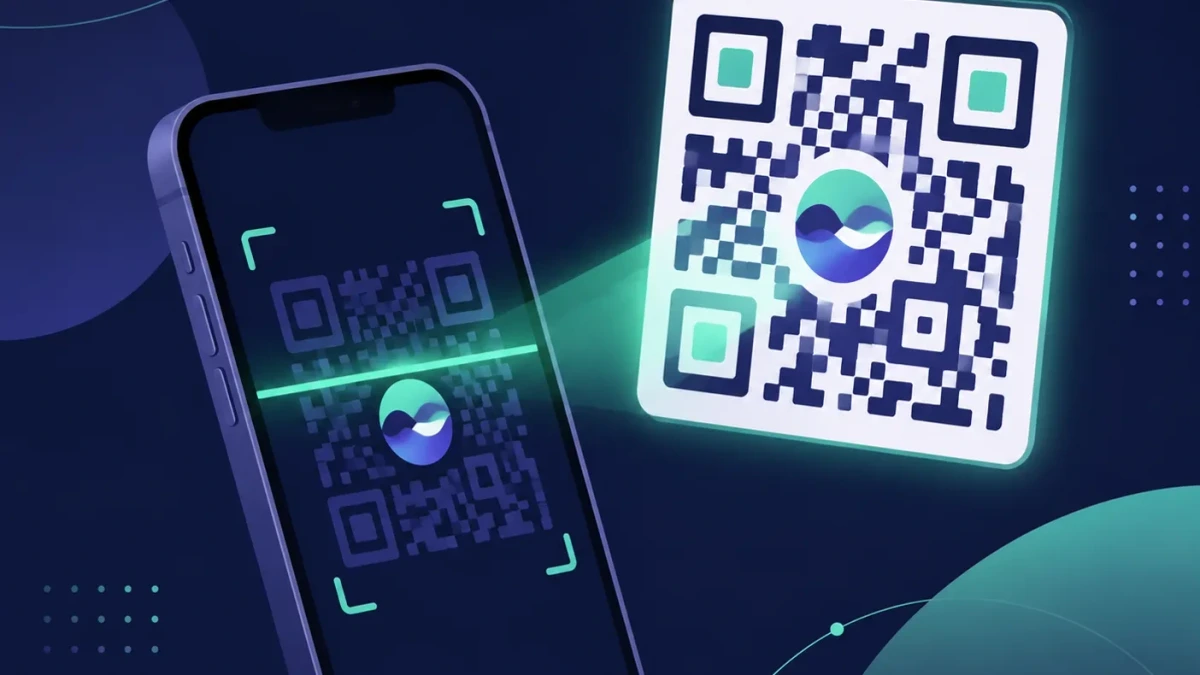
A QR code printed on a menu, a business card or a shopfront sign that refuses to scan is almost never broken by the data inside it. It fails because of four things that are easy to overlook: colour, logo, print size and error correction. Get those four right and the code scans even through glare and creased paper.
1. Contrast must be strong, and never inverted
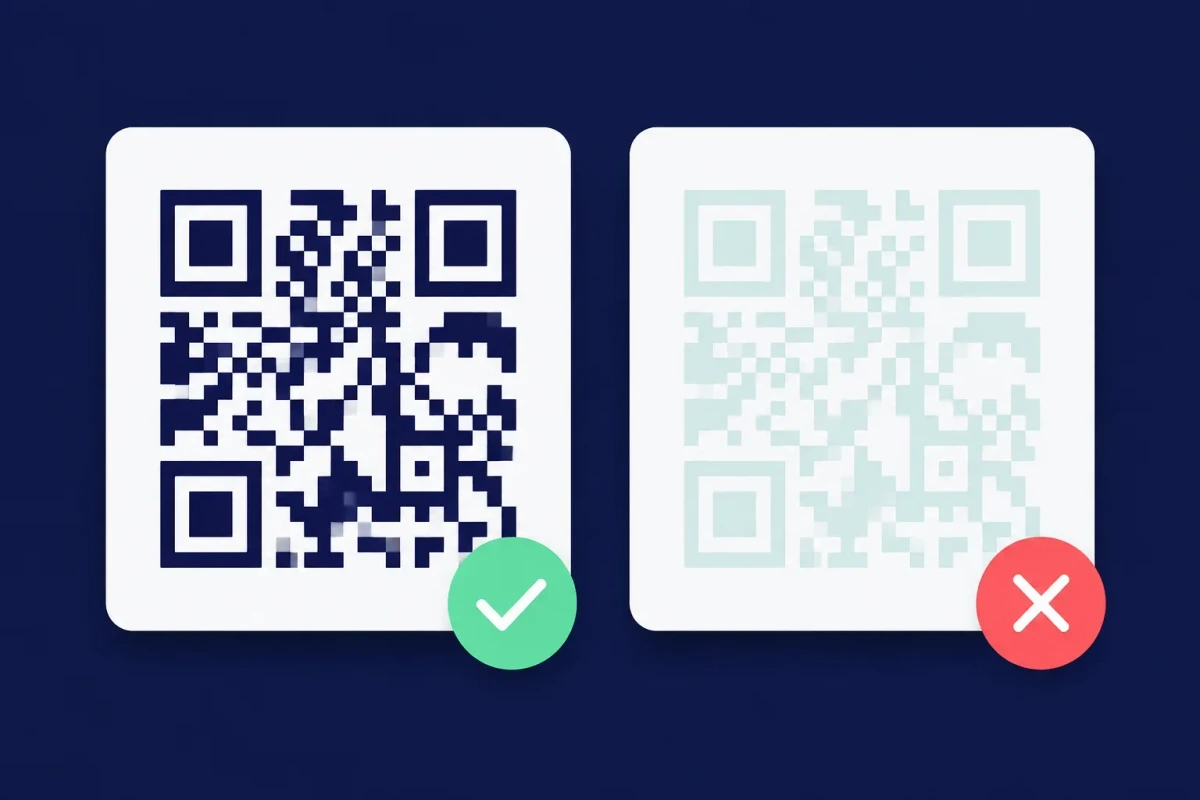
A phone camera reads a QR code from the difference between dark modules and a light background. Pale patterns such as yellow on white or light blue on grey leave the scanner unable to find the module edges. The safe rule is a contrast ratio of at least 3:1, which in practice means a genuinely dark colour on a genuinely light background.
The other common mistake is inversion: a light pattern on a dark background. Some scanner apps handle it, many do not. If the code has to work on every phone, always use a dark pattern on a light background. The Uppic QR generator checks contrast automatically and warns when it drops below 3:1.
2. Logos are fine, if you know how much room they take
QR codes survive damage because redundant data is woven into the pattern (error correction). There are four levels: L recovers about 7% of the area, M 15%, Q 25% and H 30%. A centre logo deliberately destroys part of the pattern, so there has to be enough redundancy to cover it.
The simple rule: use level H whenever there is a logo, and keep the logo under one fifth of the code's width. Level H makes the pattern slightly denser, but the extra resilience is well worth it. Our generator switches to H automatically the moment you upload a logo (up to 1 MB).
What you must never do is enlarge the logo until it covers one of the three large corner squares. Those are the finder patterns the camera uses to locate the code in the frame; cover one and the code stops scanning no matter how high the error correction is.
3. Print size must match scanning distance
2×2 cm is the minimum for close-range scanning such as a business card or a menu. For a poster scanned from a metre away, aim for at least 10 cm. A rough rule: the code should be about one tenth of the scanning distance.
Pattern density matters too. A long URL produces smaller, denser modules that merge together when printed small. The effective fix is to shorten the URL first, or use a dynamic QR, which embeds a short system link instead and produces a much cleaner pattern.
4. The quiet zone
The code needs a clear margin of the background colour on all sides, at least four modules wide. Do not butt it against the edge of the artwork, a line of text or a decorative border, or the camera cannot tell where the code ends. If you use a frame with a call-to-action label, the frame sits outside the quiet zone, not over it.
Static or dynamic: decide before you print
Static QR embeds the data directly in the image. It is free, never expires and needs no account, but the destination cannot be changed later. If the URL changes after printing, everything has to be reprinted.
Dynamic QR embeds a short system link that forwards to the real destination, so you can change where it points at any time while the printed code stays the same, and you get scan statistics (time, device, country). It is the right choice for large print runs and for campaigns whose destination may move.
Pre-print checklist
- Dark pattern on light background, contrast at least 3:1
- Logo present = error correction level H, logo under one fifth of the width
- At least 2×2 cm for close range, larger with distance
- Quiet zone of at least four modules on every side
- Download as SVG for print so it stays sharp at any size
- Scan a printed proof with at least two phones of different brands
Pass those six checks and the code will scan in the real world, not just on the designer's monitor.